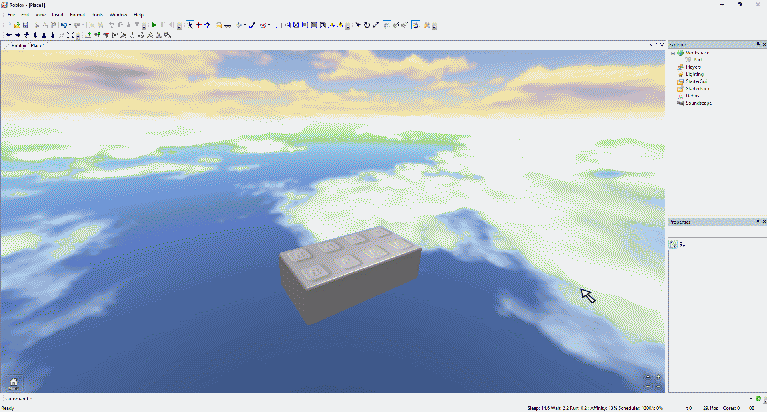
After opening studio from the launcher, press the File button at the top left of the screen.
There are two main options here.
Pressing this will open a new place file for you to edit.
(NOTE: There is no baseplate when creating a new place file. You will have to create one youself, however this is very easy to do.)
Pressing this will let you open a pre-existing RBXL file.
At the top of the screen press the Insert
button. In the drop-down menu, press the Object
button.
A menu of different things you can insert will appear. Look for a option called Part
. Press the OK button. You now have a part that you can edit.
At the top of the screen, there will be a set of buttons. Look for a button with 4 blue dots with a small square in the center.

This tool will let you resize parts that are selected.
At the top of the screen, there will be a set of buttons. Look for an orange button with 4 arrows.
This will let you move parts by 1 stud.